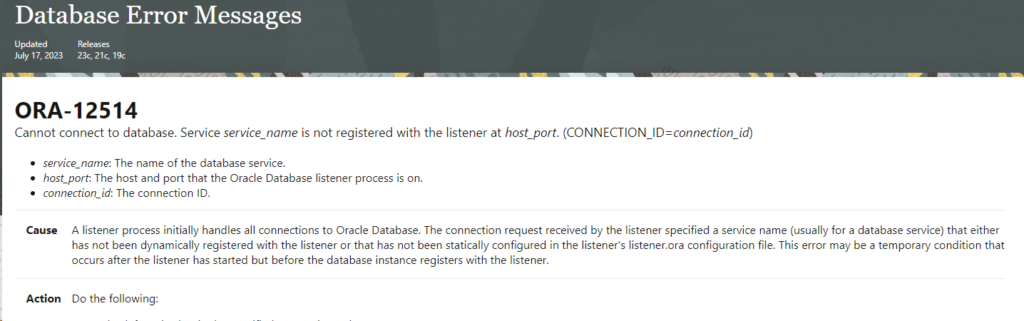
Oracle introduced a new, much faster and more interactive Error Portal. In this document, we show you how to configure it so that it can be used with the smart search function of major browsers, such as Chrome. In other words, with this configuration, you will have a mechanism where, by typing a predefined shortcut (usually related to an error) and the Oracle error number Oracle into the browser's URL field, Oracle search directly in the Oracle error portal documentation.
If you do not configure this option, you can always access the portal directly via this URL:oracle
SMART CONFIGURATION OF THE ORACLE ERROR PORTAL ORACLE BROWSERS
In this example, we will configure Chrome.
In the Chrome browser, go to Settings -> Search engine -> Manage search engines and site searches.
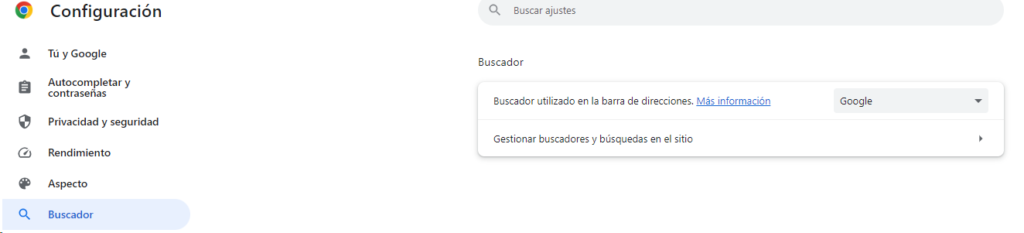
Once you have clicked on the "Manage search engines and site searches" button, go to "Site searches" and click on the "Add" button.

Add a new search engine. To do this, you need to fill in three fields: Search engine name, the shortcut that will link to the portal, and the URL of the Oracle error portal.
Therefore, it would be filled in as follows:
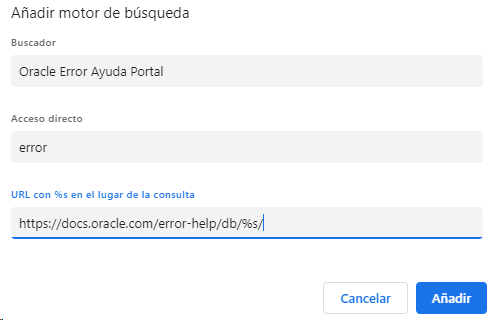
The added values are:
Search engine: This will be the name that appears in your search engine when referring to "Direct access."
Direct access: Direct access that we will use to refer to the Oracle error portal, Oracle related to errors (err, error, etc.).
URL: URL of the Oracle Error portal. oracle
Now, simply by referring to the name chosen in the shortcut, in our case "error" in the browser, plus the error number, a search will be performed directly in the Oracle Error portal.
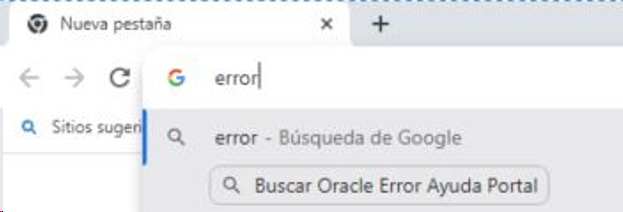
At this point, the browser will give you the option to search directly on the Oracle portal Oracle on the Web, as if it were a normal search. We search directly on the Portal, as follows:

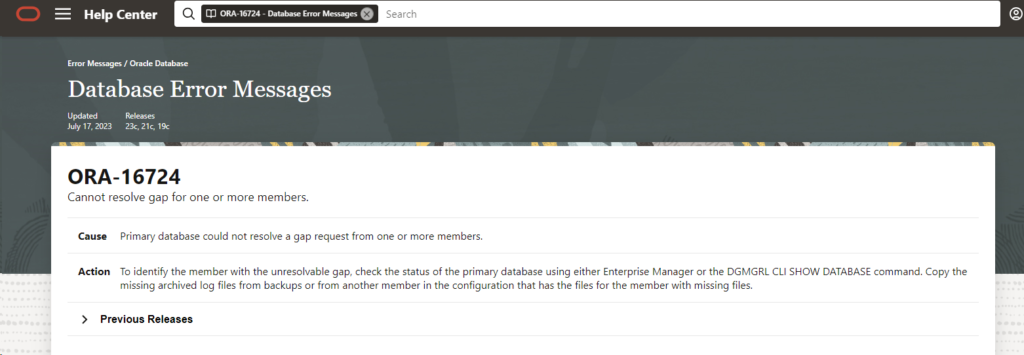
The option to add a new Oracle error finder is quite useful, and its application is, as you can see, very simple.