You may have occasionally needed to customize your connection to your Oracle database Oracle SQL*Plus; in this post , I’ll walk post through the basics of how to do it.
Customizing SQL*Plus allows SQL*Plus to display additional information beyond the default settings, which can be useful in many situations; it lets you display custom messages, adjust the output format, and more.
There are two configuration files (glogin.sql and login.sql) that run automatically when you start SQL*Plus make your changes permanent.
login.sql → user-specific.
glogin.sql → global (for all users)
The default location for these files is: $ORORACLE
You can also create your own custom login.sql file.
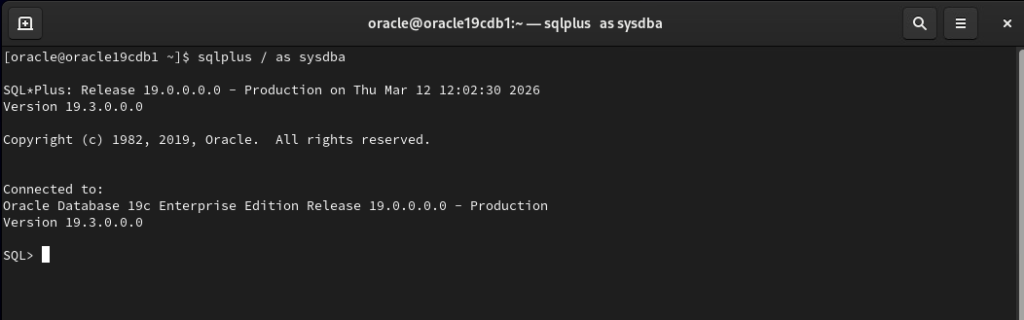
This is the default configuration for our SQL*Plus.
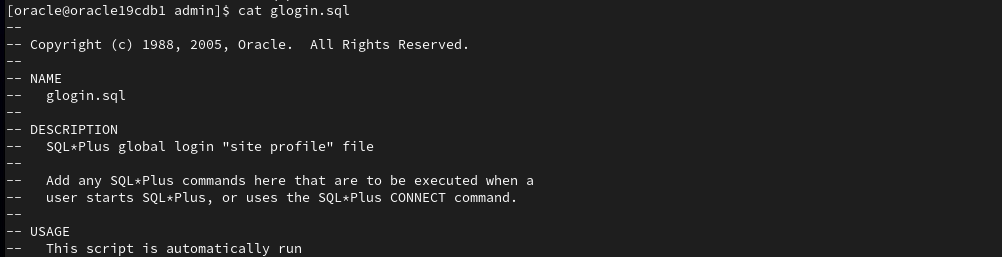
In theORACLE directory, we verify that the glogin.sql file is present

This is the default glogin.sql file that we are going to customize.
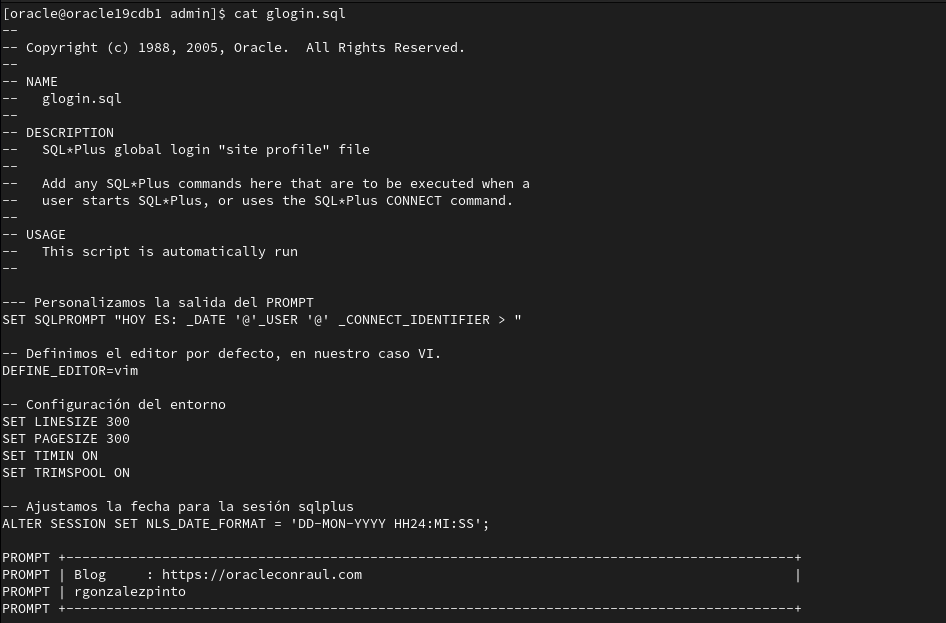
We customize our glogin.sql file
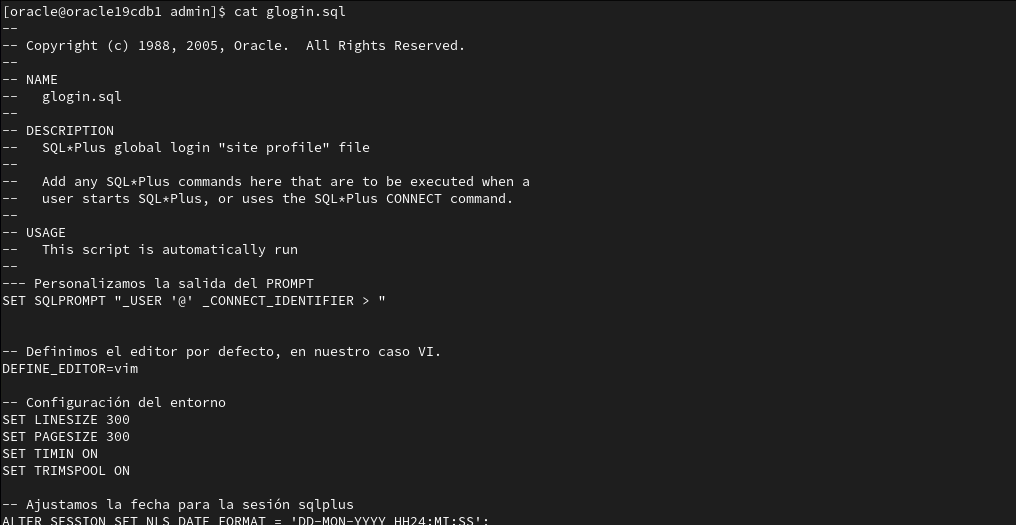
A description of our configuration file:
— We customize the PROMPT output
SET SQLPROMPT «_USER ‘@’ _CONNECT_IDENTIFIER > «
— We set the default editor, in our case VI.
DEFINE_EDITOR=vim
— Environment configuration
SET LINESIZE 300
SET PAGESIZE 300
SET TIMIN ON
SET TRIMSPOOL ON
— We set the date for the sqlplus session
ALTER SESSION SET NLS_DATE_FORMAT = ‘DD-MON-YYYY HH24:MI:SS’;
The details of our configuration are as follows:
Adjust line width: SET LINESIZE 300: We set the maximum width of the output to 300 characters. This prevents the results of our long queries from being truncated or split across multiple lines.
Set rows per page: SET PAGESIZE 300 specifies how many rows are displayed before the header is repeated.
Remove spaces: SET TRIMSPOOL ON Remove any extra spaces at the end of each line when exporting data.
Show execution time: SET TIMING ON shows how long each query took to complete.
Change the default display format for date fields (DATE): ALTER SESSION SET NLS_DATE_FORMAT = 'DD-MON-YYYY HH24:MI:SS';
We customize the PROMPT: SET SQLPROMPT "_USER '@' _CONNECT_IDENTIFIER > ". This sets the text that will appear in the prompt. In our case, _USER (connected user)
‘@’ is a character used as a separator.
_CONNECT_IDENTIFIER: Shows which database or service we are connected to.
Save the changes to the glogin.sql file, and reconnect. Once you reconnect, you'll see the custom changes in your new connection.

The changes to our file have been applied.
Some of the main options for customizing the SQL*Plus connection SQL*Plus as follows:
| Variable | What's on | Example |
|---|---|---|
_USER | User logged in | HR |
_CONNECT_IDENTIFIER | Database or service | ORCL |
_DATE | Current date | 12-MAR-26 |
_PRIVILEGE | Login privileges (e.g., SYSDBA) | SYSDBA |
_O_VERSION | Full version of Oracle | 19.0.0.0.0 |
_O_RELEASE | Oracle Release | 19.0.0.0.0 |
_SQLPLUS_RELEASE | SQL*Plus client version | 21.0.0 |
_EDITOR | Editor configured | vi |
Another option is to customize the connection with shapes or messages using PROMPT
Let's make a few changes and see what happens.
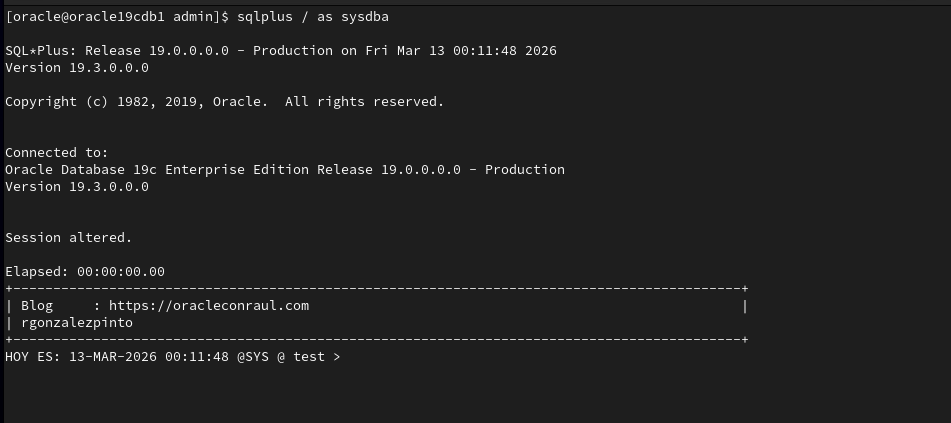
We added the _DATE parameter so that the current date appears, and we created a custom prompt with the blog name blog the author's name.
— We customize the PROMPT output
SET SQLPROMPT “TODAY IS: _DATE ‘@’_USER ‘@’ _CONNECT_IDENTIFIER > “
PROMPT +——————————————————————————————-+
PROMPT | Blog https://oracleconraul.com |
PROMPT | rgonzalezpinto
PROMPT +——————————————————————————————-+
The result is as follows when we reconnect to the database using SQL*Plus:
The options are "endless," as SQL*Plus sessions can be customized.
To view all configuration options, we recommend consulting the official documentation "SQL*Plus® User’s Guide and Reference", where you’ll find all the options and formats for configuring your SQL*Plus connection.